Frequently Asked Questions

Admin User Operations

How to login to WaitQue?

  1. Navigate to app.waitque.com

  2. Click the "Lock" icon in the top right corner

  3. Enter your WaitQue username and password

  4. NOTE: If logging in with a temporary password, you will be required to change your password on the first login.

How do we create or remove Admin Users?

New Admin Users need to be created by WaitQue customer service. You can send a request to info@waitque.com for a new Admin User to be created for your company or for an existing Admin User to be disabled.

View & Manage Leads from Customers

An email will be sent to the notification email address (configured by WaitQue customer service) every time a customer creates a lead for your company through the app. This email contains a direct link to view the lead.

Otherwise, Admin users can view the list of leads from customers from the admin dashboard. Admin users can then click a specific lead to view lead details and update the lead status.

Navigation Steps:

Login > Admin Dashboard > Active Leads

View Messages from Customers

An email will be sent to the notification email address (configured by WaitQue customer service) every time a customer messages your company through the app. This email contains a direct link to view the message.

Otherwise, Admin users can view the list of messages from customers from the admin dashboard. Admin users can then click a specific message to read the entire message.

Navigation Steps:

Login > Admin Dashboard > Unread Messages

Generate QR Codes

Admin users can generate up to 1000 QR codes from the admin dashboard.

These QR codes are not attached to any customer and are intended to be pre-printed on flyers, swag, etc.

Field users can then assign a QR code that's been pre-printed to a customer in the field.

The customer can then scan their assigned QR code to login to your company's WaitQue customer portal.

Navigation Steps:

Login > Admin Dashboard > Generate QR Codes

Managing Field Users

Field users are the users that interface directly with your customers; they create create customers, attach them with QR codes, create Business Emergency Plans, etc.

Admin users can add, disable (temporary) and delete (permanent) field users for their company in WaitQue from the admin dashboard.

Admin users can also reset the password for field users. The field user will receive an email with their new password (temporary; it will need to be changed on the first login).

Navigation steps:

Login > Admin Dashboard > Settings > Manage Users

Field User Operations

How to login to WaitQue?

  1. Navigate to app.waitque.com
  2. Click the "Lock" icon in the top right corner
  3. Enter your WaitQue username and password
  4. NOTE: If logging in with a temporary password, you will be required to change your password on the first login.

Manage Existing Customer

Field users can search for existing customers in your company by name, phone number or address (all fields are searched by the search box). 

Once the customer is found, field users can click the customer to perform the following tasks:

  • Assign a QR code, if the customer has not had one assigned
    • The QR code must be generated by your company's Admin User and must not already be assigned to another customer
  • Assign a new QR code, if the customer has a QR code currently assigned, but needs a new one
  • Create a Business Emergency Plan (for commercial customers only; residential customers do not support a BEP)

Creating a new customer

If a customer does not already exist for the company in WaitQue, then field users can create a new customer record by providing the customer type, name, phone number, email and address. 

Once a customer is created, this customer can be managed as any other existing customer.

Attaching a QR code to a customer

A QR code must be attached to a customer so that the customer can login to your company's WaitQue customer portal, either using the QR code or their unique Manual Customer Code.

The only QR codes that can be attached to a customer must be generated by your company's Admin User and must not already be assigned to another customer. 

To attach a QR code:

  1. Login to WaitQue as a Field User
  2. Search for the customer and click on their name
  3. Click Assign QR Code
  4. Scan an unassigned QR code generated by your company's Admin User
    1. WaitQue will attach that QR code to the customer and also assign a Manual Customer Code that customers can use to login to WaitQue if they don't want to scan their QR code

To replace a customer's QR code:

  1. Login to WaitQue as a Field User
  2. Search for the customer and click on their name
  3. Under the customer's existing QR code click Assign New QR Code
  4. Scan an unassigned QR code generated by your company's Admin User
    1. WaitQue will attach that QR code to the customer and that customer's previous QR code available to assign to a different customer

Creating/Editing a Business Emergency Plan

Business Emergency Plans can only be created for commercial customers.

Steps to create or edit a Business Emergency Plan:

  1. Search for existing customers or create a new commercial customer. 

  2. Click on Business Emergency Plan
  3. Click on each BEP heading and fill out each field that's relevant

NOTE: New BEPs by default are created in a disabled state

Enabling/Disabling a Business Emergency Plan

Business Emergency Plans can only be created for commercial customers.

Steps to enable or disable a Business Emergency Plan:

  1. Search for existing customers or create a new commercial customer.
  2. Click on Business Emergency Plan
  3. Click on the button to Activate or Deactivate the BEP

NOTE: New BEPs by default are created in a disabled state

Customer Operations

How to login to WaitQue?

There are 2 ways for customers to login to WaitQue; either by scanning a QR code provided by your restoration company or a Customer Code, also provided by your restoration company.

Logging in via QR code:

  1. Navigate to app.waitque.com using a phone, tablet, etc. device with a camera
  2. Scan the QR code provided by your restoration company
    1. You may have to allow Camera permissions in order to scan the QR code
  3. Once the QR code is scanned, you will automatically be logged into your restoration company's WaitQue portal
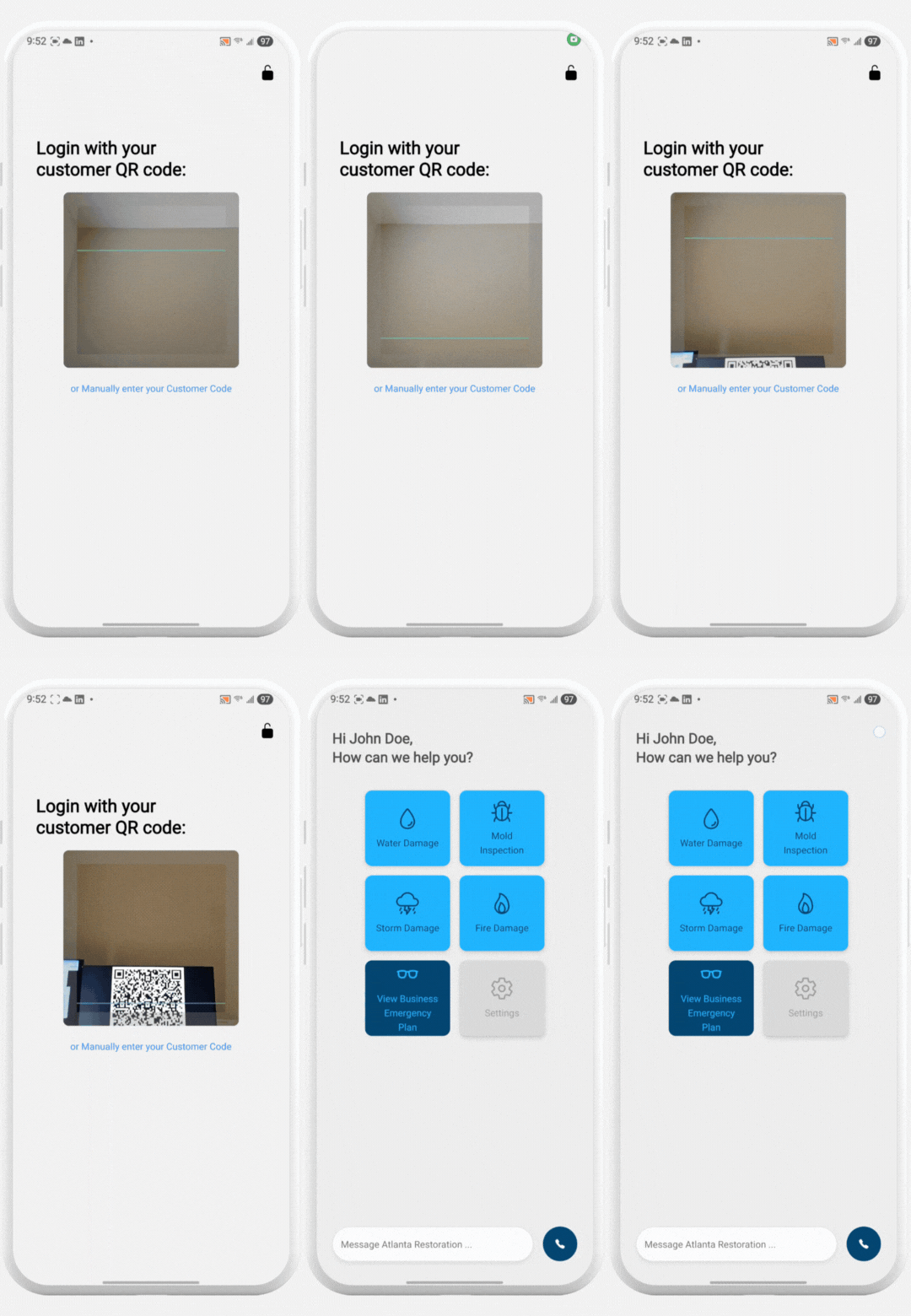
Customer Login

Logging in via a Customer Code:

  1. Navigate to app.waitque.com
  2. Click the "Manually enter your Customer Code" link
  3. Enter the 8 digit Customer Code (ex. aBcD-1234) provided by your restoration company (NOTE: the Customer Code is case-sensitive)
  4. Click login and if the Customer Code is correct, you will automatically be logged into your restoration company's WaitQue portal

How do I view my emergency plan?

NOTE: Only commercial customers can have a business emergency plan in WaitQue

NOTE: Your restoration company must create and activate a business emergency plan for you before you can access it in your WaitQue portal

  1. Login to WaitQue to get to the WaitQue portal
  2. Click the "View Business Emergency Plan" button
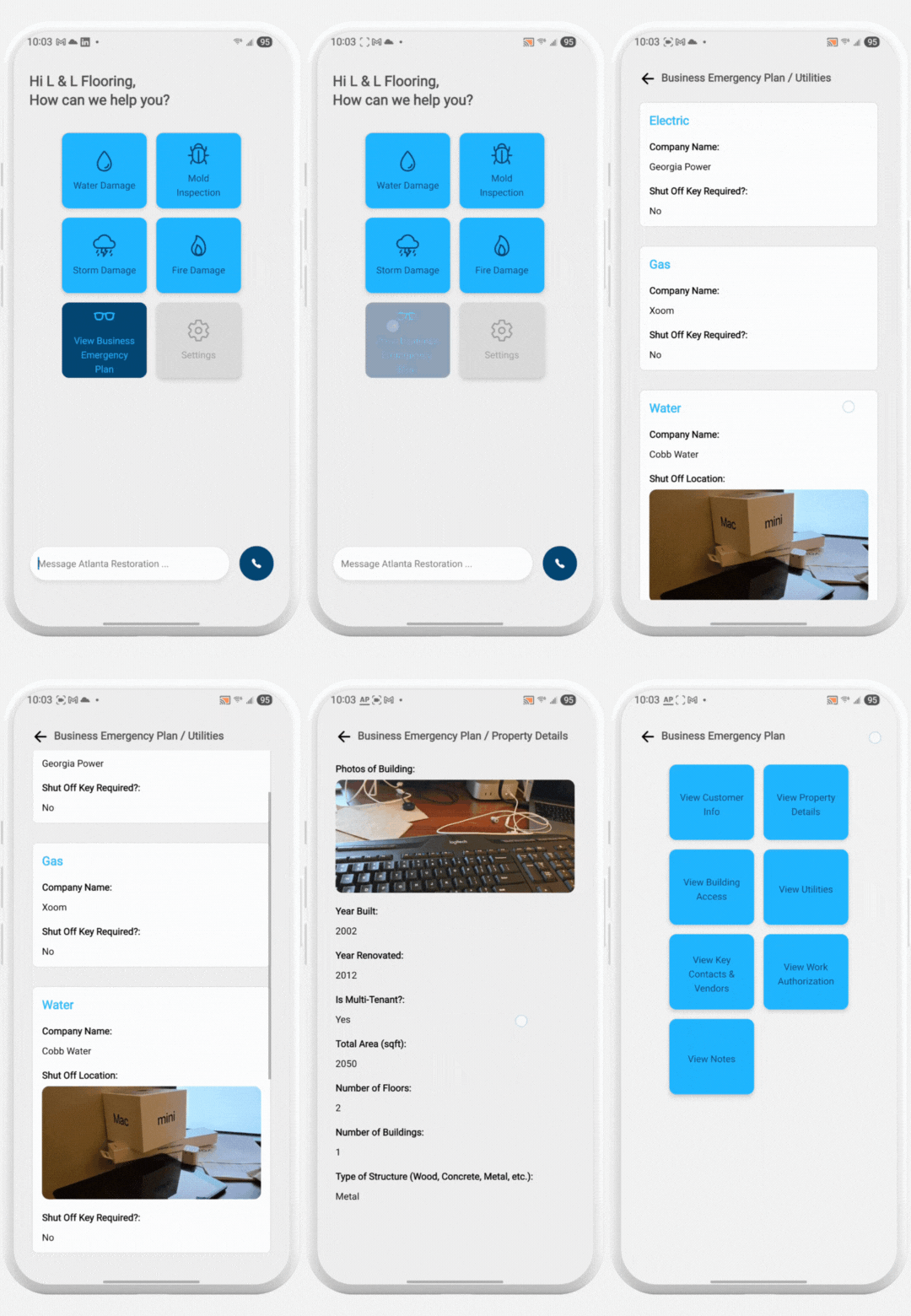
View BEP


How do I send a message to my restoration company?

Once you have logged in to WaitQue and are at the WaitQue portal, you will see a Message bar at the bottom of the screen.

After you type your message, click the send arrow and your message will be sent directly to your restoration company.
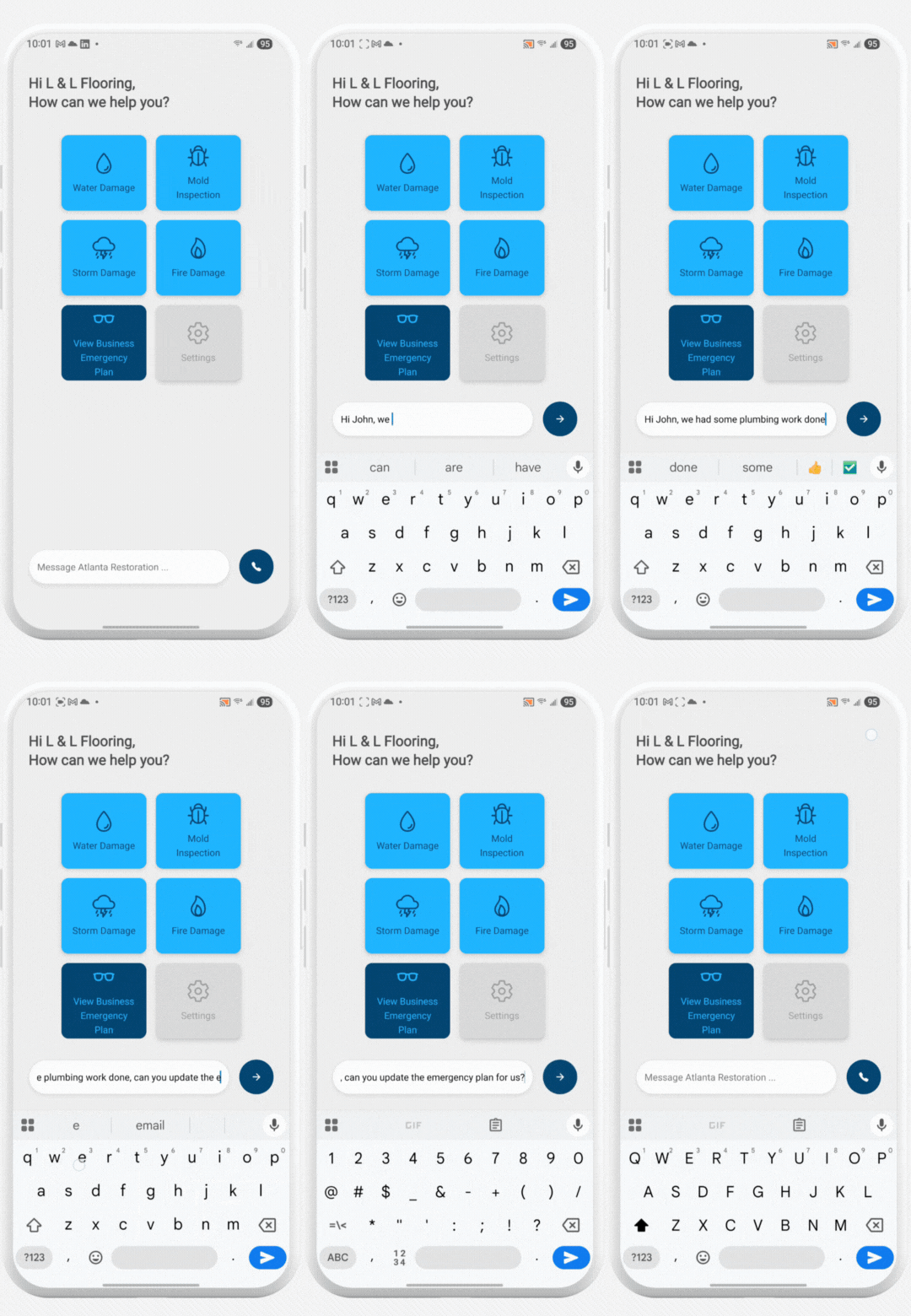
Send Message


How do I call my restoration company?

Once you have logged in to WaitQue and are at the WaitQue portal, you will see a Phone icon at the bottom of the screen. Click the icon and it will take you to your device's dialer.

NOTE: If there is a message typed, then the Phone icon is replaced with a Send icon. Send or remove the typed message to bring back the Phone icon.


How do I submit a service request?

Once you have logged in to WaitQue and are at the WaitQue portal, you will see the services offered by your restoration company.

Select the service that is most relevant and fill out any information that might help in getting you the most accurate service and submit the form. Your request will be sent directly to your restoration company.
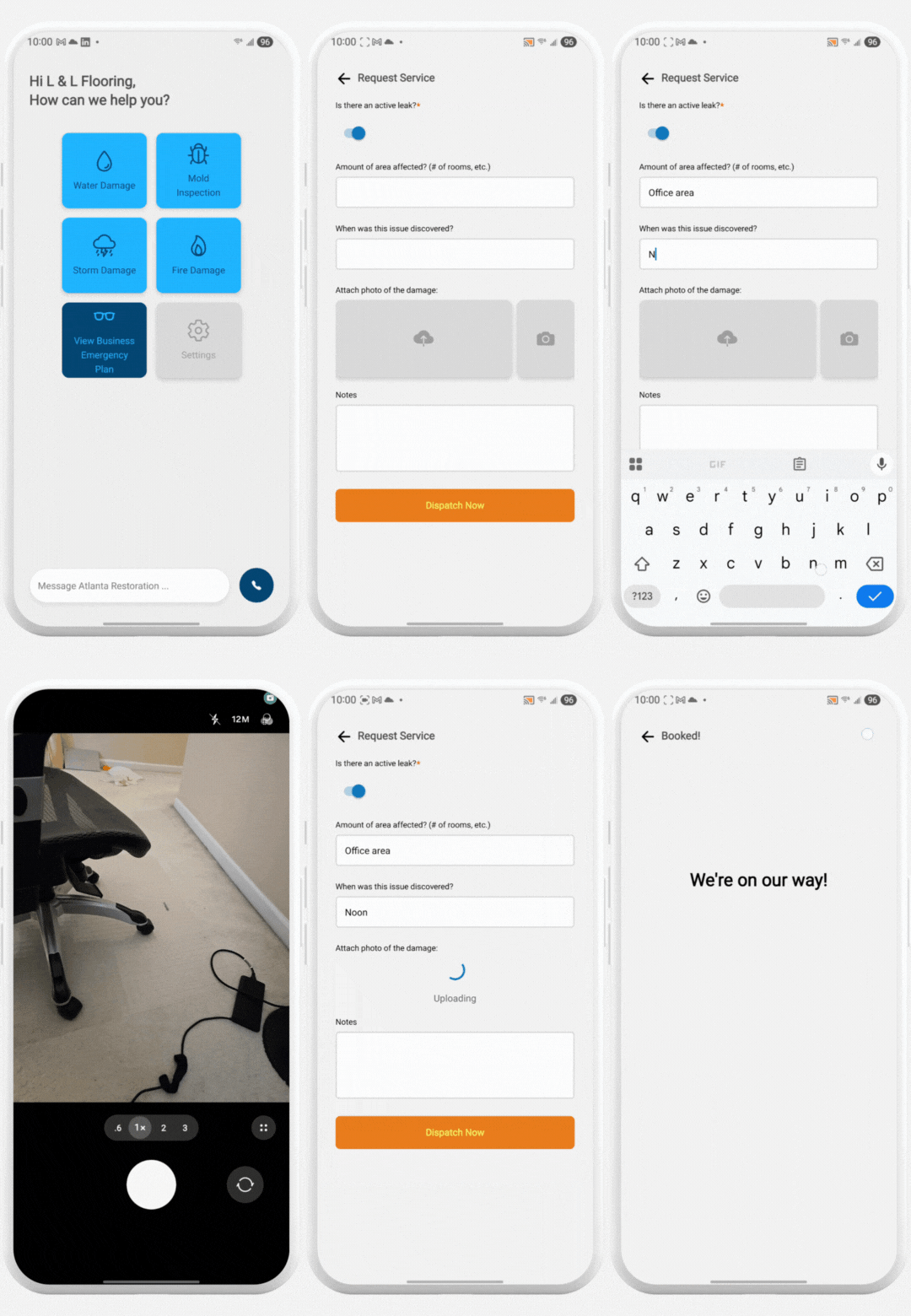
Service Request


How do I logout?

If you are logged in, click the Settings button on the WaitQue portal. On the Settings page, click the logout button.

NOTE: Once you logout, you will need the QR code or Customer Code from your restoration company to get back in to your WaitQue portal.